Saturday, May 23, 2009

SQL Server 2008 SP1 Step by Step installation process

SQL Server 2008 SP1 was released on 4 Apr 09 and it is available for download here . I have downloaded SQLServer2008SP1-KB968369-x86-ENU.exe
since I have 32 bit version of SQL Server Evaluation Edition. Download the required edition as per the SQL Server 64/32 bit or OS what you have.

If you have SQL Server RTM Edition 32 bit you will have built Number as Microsoft SQL Server 2008 (RTM) - 10.0.1600.22 (Intel X86).

After installation of SP1 the build number (as on 22 May 2009) will be
Server 2008 (RTM) - 10.00.2531.00 (Intel X86).

Installation process are as follows

Step 1 : Download SP1

Step 2 : Install the SP1. Double click on the downloaded file

Screen 1


Screen 2


Screen 3


Screen 4


Screen 5


Screen 6


Screen 7


Screen 8


Screen 9


Summary :

There is nothing complex in this installation. After the installation you need to restart the computer to affect the installation

Wednesday, April 22, 2009

Tech Ed India 2009

Tech Ed India 2009 at Hyderabad brings to you the best of the IT Pro technologies in-depth coverage! Check here

Friday, February 27, 2009

SQL Server 2008 Service Pack 1 - CTP Released

SQL Server 2008 SP 1 CTP

Sunday, October 19, 2008

Microsoft SQL Server 2008 Report Builder 2.0 Released

Microsoft SQL Server 2008 Report Builder 2.0 provides an intuitive report authoring environment for business and power users. It supports the full capabilities of SQL Server 2008 Reporting Services. The download provides a stand-alone installer for Report Builder 2.0

Download from Here

Wednesday, September 24, 2008

Cumulative update package 1 for SQL Server 2008 Released

Cumulative Update 1 contains hotfixes for the Microsoft SQL Server 2008 issues that have been fixed since the release of SQL Server 2008.

Sunday, September 14, 2008

Import /Export Wizard in SQL Server Express 2008

Finally Microsoft has decided to include Import/Export wizard in SQL Server 2008 Express edition due to the consistant demand of this tool

Tuesday, September 9, 2008

Step by Step Installation of SQL Server 2008

SQL Server 2008 is the new member in Microsoft Database Server family and the installation process as usual is simple and straight forward. This version has many features that can be configured during the initial installation. The screens are little different from earlier versions. Without any doubt, the installation process in 2008 is more centralized and has more clarity. I am demonstrating a simple stand alone installation of SQL Server 2008 in this article.

You may also refer SQL Server 2008 Books Online here

I am not intended copy paste the system requirements and all other basics here because those information is already available in Microsoft Sites. It better to refer those because it is subject to change.
Planning SQL Server 2008 Installation
System Requirement

Pre-Requisite

• Referred the above mentioned sites and ensured that your system meet all the requirements
• You have planned your Instance name if it is a named Instance
• You have planned all the Data Directory. Ie. Where to keep System Databases, TempDB, and User Databases.(if not you can go by Default but it is not generally recommended).
• You have planned Startup Account for all the services. (if not you can go by Default but it is not generally recommended.)
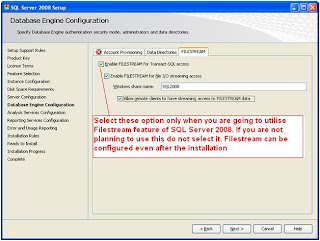
• You have a list of features that you wants to install. Like if you are not going to use Filestream no need to configure that during installation

My System Configuration

• Operating System : Windows XP
• Existing SQL Server Instance
o Default Instance : SQL Server 2005 SP 2
o Named Instance 1: SQL Server 2000 SP 4
o Named Instance 2 : SQL Server 2005 Express SP2
• .Net Framework : 1.0

Step 1 : Insert the DVD

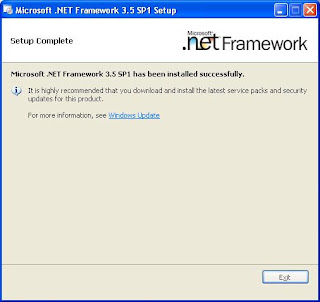
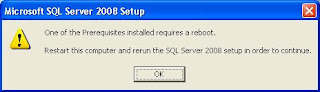
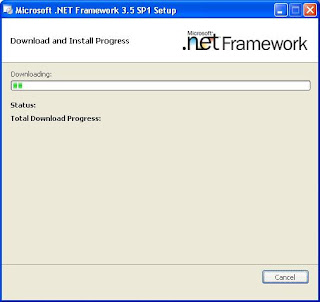
The system will automatically detect the system configuration and it install the .NetFramework and Windows Installer 4.5 if required.

My installation Screen is as follows :-


Step 2 : System has installed .NetFramework 3.5 and rebooted the system. Next step is to install SQL Server 2008.

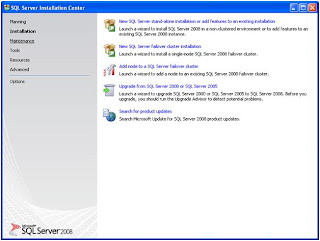
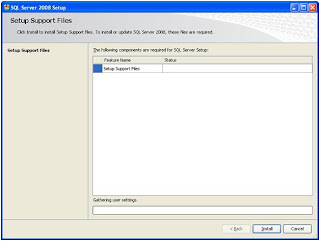
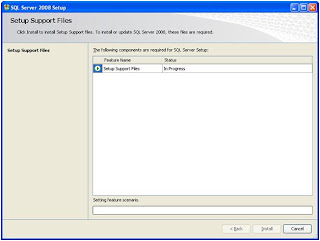
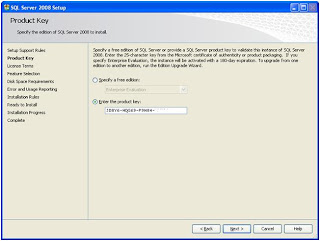
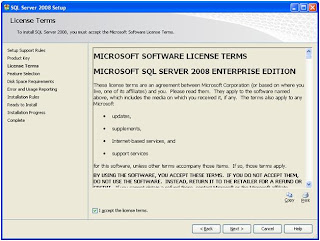
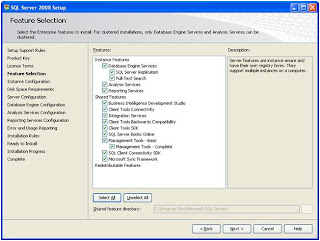
In "SQL Server Installation Center" , navigate to "Installation" -- >> click "New Installation or Add Features to an Existing Installation."
\



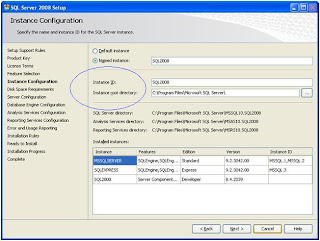
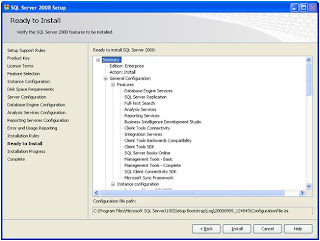
In the Instance Configuration Screen you need to select the instance type (default /named) and other instance related setting. The one new thing in SQL Server 2008 is InstanceID.
Instance Configuration

Instance ID - By default, the instance name is used as the Instance ID. This is used to identify installation directories and registry keys for your instance of SQL Server. This is the case for default instances and named instances. For a default instance, the instance name and instance ID would be MSSQLSERVER. To use a non-default instance ID, specify it in the Instance ID field.







Note :
SQL Server Management Studio Exe name in SQL Server 2008 SSMS.exe where as in SQL Server 2005 it was sqlwb. Ie. To open Management Studio in 2008 -- Start -->> Run -->> SSMS

Summary

I deliberately installed SQL Server 2000 and 2005 in the same system before installing 2008 to ensure that all version can co-exists. The installation process of SQL Server 2008 is comprehensive and simplified than earlier versions. And it is understandable that, as the features grow the installation process also gets lengthy.

Saturday, August 23, 2008

SQL Server 2008 Sample Databases Download

Download SQL Server 2008 Sample OLTP , OLAP Databases from Here

Wednesday, August 6, 2008

Microsoft SQL Server 2008 Released

Finally Microsoft SQL Server 2008 RTM version is released today. It was suppose to release with Windows 2008 and Visual Studio 2008 but somehow did not. There are seven editions in SQL Server 2008.

In a press release, Microsoft cited several large enterprise customers who are testing SQL Server 2008, including Xerox, Siemens, Clear Channel Communications and Fidelity Investments.

Friday, July 25, 2008

Data Compression in SQL Server 2008

When we talk about compression feature in SQL Server 2008, it address two areas. Data Compression and Backup Compression. I have already discussed Backup compression here. This article is specifically discussing Data compression feature in SQL Server 2008. The idea behind Data compression is, if we can reduce the data size then the resource usage like memory (data buffer) , Storage space and Network traffic can be reduced therefore you will have better performance and manageability. But before going for Data Compression you should do proper analysis, whether this feature is appropriate for your environment or not. If the Database Server is having CPU resource crunch you must not opt Data compression because, Data Compression is more CPU oriented operation. When you have a system where there is no problem of CPU but it is more IO based, then you may go for data compression which will give you better performance.

SQL Server 2008 supports ROW and PAGE compression for both tables and indexes. Data compression can be configured for the following database objects:
• A whole table that is stored as a heap.
• A whole table that is stored as a clustered index.
• A whole non-clustered index.
• A whole indexed view.
• For partitioned tables and indexes, the compression option can be configured for each partition, and the various partitions of an object do not have to have the same compression setting.

As already mentioned there are two levels of compression, PAGE and ROW. Before going for compression of the data you must do proper estimation and planning. Use system stored procedure sp_estimate_data_compression_savings to check whether the data compression can be benefited for a particular table.

What is the difference between PAGE and ROW level compression?
(a) PAGE Level Compression• Compressing the leaf level of tables and indexes with page compression consists of three operations in the following order:
• Row compression
• Prefix compression
• Dictionary compression

(b) ROW Level Compression
• It reduces the metadata overhead that is associated with the record. This
metadata is information about columns, their lengths and offsets. In some
cases, the metadata overhead might be larger than the old storage format.
• It uses variable-length storage format for numeric types (for example
integer, decimal, and float) and the types that are based on numeric (for
example datetime and money).
• It stores fixed character strings by using variable-length format by not
storing the blank characters.

Note : You must read more about ROW and PAGE Compression in Books Online. There are few interesting points like when the PAGE compression is actually take place kind. PAGE compression is a Superset of ROW compression and system goes for page compression only when the page is filled. Till then it is a ROW level compression. Once the page is filled, The whole page is reviewed; each column is evaluated for prefix compression, and then all columns are evaluated for dictionary compression. If page compression has created enough room on the page for an additional row, the row is added, and the data is both row- and page-compressed.

How do we do data compression estimation on a table?
(a) Create a sample table Table
Use AdventureWorks
Go
Create table TestCompression (col int,comments char(8000))
Go
Insert into TestCompression select Message_id,text from sys.messages

Note : I have choosen CHAR Datatype intentionally so that I can demonstrate the estimation properly.
(b) Run the sp_estimate_data_compression_savings system stored procedure against this table
-------------------------------------------------------------------------------------
Row Compression Estimation Report

EXEC sp_estimate_data_compression_savings 'dbo', 'TestCompression', NULL, NULL, 'ROW' ;
Go

object_name : TestCompression
schema_name :DBO
index_id :0
partition_number : 1
size_with_current_compression_setting(KB) : 704888
size_with_requested_compression_setting(KB) : 9952

sample_size_with_current_compression_setting(KB) : 40784
sample_size_with_requested_compression_setting(KB) : 576
-------------------------------------------------------------------------------------
Page Compression Estimation Report

EXEC sp_estimate_data_compression_savings 'dbo', 'TestCompression', NULL, NULL, 'Page' ;
Go
object_name : TestCompression
schema_name :DBO
index_id :0
partition_number : 1
size_with_current_compression_setting(KB) : 704888
size_with_requested_compression_setting(KB) : 9134

sample_size_with_current_compression_setting(KB) : 39664
sample_size_with_requested_compression_setting(KB) : 560

-------------------------------------------------------------------------------------
How to read this result ?
I am not going to explain, how to read the result of this stored procedure in detail, since it is clearly mentioned in Books Online. In the result the size_with_current_compression_setting(KB) : 704888 and
size_with_requested_compression_setting(KB) : 9134
will give you fair amount of idea how compression is going to benefits. See the difference in space usage shown in before compression and after the compression 704888: 9134. Without any doubt the compression is going to save lot of space in this table.

Why Page Compression showing more compression of data than ROW Compression?
If you see the result of PAGE and ROW level compression, you can see that page level compression save more space. Why so? Because Page compression do ROW compression as well as Dictionary and Prefix Compression. So PAGE compression is a superset of ROW Compression. So the point here is, if we want highest level of compression, go for page at the cost of more CPU cycle.

Note : One thing I have noticed in the system stored procedure is, for every run the result is different. There is few KBs size different in each run. I have reported this in Microsoft Connect.

Estimation Report in Query Analyser


Now we know the compression feature will be useful for this table. How do we enable compression for this table? Here we go…


There are few options available to enable Data Compress on a table.
(a) From Management Studio.
(b) While creating in the CREATE Table Statement

CREATE TABLE [dbo].[TestCompression](
[col] [int] NULL,
[comments] [char](8000) NULL
) ON [PRIMARY]
with( DATA_COMPRESSION = PAGE )

(c) In ALTER Table Statement

ALTER TABLE [TestCompression]
REBUILD WITH (DATA_COMPRESSION = PAGE);

Enabling Data Compression from Management Studio
Screen 1


Screen 2


Screen 3


Screen 4


Screen 5


Screen 6


We have successfully enabled data compression on this table. How do we confirm this. You can query sys.partitions. Here we go….
Select OBJECT_NAME(object_id),data_compression_desc,* From sys.partitions where data_compression<>0.


Screen 7


Now we have enabled compression and let us check what happens if we run the same system stored procedure to do the estimation. See the result. No scope for improvement further because it is already compressed


Few more informations from Books online.
• The compression setting of a table is not automatically applied to its nonclustered indexes.
• Each index must be set individually.
• Tables and indexes can be compressed when they are created by using the CREATE TABLE and CREATE INDEX statements. To change the compression state of a table, index, or partition, use the ALTER TABLE or ALTER INDEX statements.
• Compression is not available for system tables.
• Apply compression only after exploring options like Data defragmentation etc.

Summary
Having explained the whole topic I kept one very important point for the summary section. That is, this feature will be only available in Enterprise Edition, Developer Edition and Evaluation Edition. So the system stored procedures and options in GUI will only be available in the above mentioned editions. In IO bound application certainly this feature will be useful. I keep my finger crossed for the feedback from the community who have successfully implemented and experience this feature.