Sunday, September 14, 2008

Import /Export Wizard in SQL Server Express 2008

Finally Microsoft has decided to include Import/Export wizard in SQL Server 2008 Express edition due to the consistant demand of this tool

Tuesday, September 9, 2008

Step by Step Installation of SQL Server 2008

SQL Server 2008 is the new member in Microsoft Database Server family and the installation process as usual is simple and straight forward. This version has many features that can be configured during the initial installation. The screens are little different from earlier versions. Without any doubt, the installation process in 2008 is more centralized and has more clarity. I am demonstrating a simple stand alone installation of SQL Server 2008 in this article.

You may also refer SQL Server 2008 Books Online here

I am not intended copy paste the system requirements and all other basics here because those information is already available in Microsoft Sites. It better to refer those because it is subject to change.
Planning SQL Server 2008 Installation
System Requirement

Pre-Requisite

• Referred the above mentioned sites and ensured that your system meet all the requirements
• You have planned your Instance name if it is a named Instance
• You have planned all the Data Directory. Ie. Where to keep System Databases, TempDB, and User Databases.(if not you can go by Default but it is not generally recommended).
• You have planned Startup Account for all the services. (if not you can go by Default but it is not generally recommended.)
• You have a list of features that you wants to install. Like if you are not going to use Filestream no need to configure that during installation

My System Configuration

• Operating System : Windows XP
• Existing SQL Server Instance
o Default Instance : SQL Server 2005 SP 2
o Named Instance 1: SQL Server 2000 SP 4
o Named Instance 2 : SQL Server 2005 Express SP2
• .Net Framework : 1.0

Step 1 : Insert the DVD

The system will automatically detect the system configuration and it install the .NetFramework and Windows Installer 4.5 if required.

My installation Screen is as follows :-


Step 2 : System has installed .NetFramework 3.5 and rebooted the system. Next step is to install SQL Server 2008.

In "SQL Server Installation Center" , navigate to "Installation" -- >> click "New Installation or Add Features to an Existing Installation."

\


In the Instance Configuration Screen you need to select the instance type (default /named) and other instance related setting. The one new thing in SQL Server 2008 is InstanceID.
Instance Configuration

Instance ID - By default, the instance name is used as the Instance ID. This is used to identify installation directories and registry keys for your instance of SQL Server. This is the case for default instances and named instances. For a default instance, the instance name and instance ID would be MSSQLSERVER. To use a non-default instance ID, specify it in the Instance ID field.


Note :
SQL Server Management Studio Exe name in SQL Server 2008 SSMS.exe where as in SQL Server 2005 it was sqlwb. Ie. To open Management Studio in 2008 -- Start -->> Run -->> SSMS

Summary

I deliberately installed SQL Server 2000 and 2005 in the same system before installing 2008 to ensure that all version can co-exists. The installation process of SQL Server 2008 is comprehensive and simplified than earlier versions. And it is understandable that, as the features grow the installation process also gets lengthy.

Saturday, August 23, 2008

SQL Server 2008 Sample Databases Download

Download SQL Server 2008 Sample OLTP , OLAP Databases from Here

Wednesday, August 6, 2008

Microsoft SQL Server 2008 Released

Finally Microsoft SQL Server 2008 RTM version is released today. It was suppose to release with Windows 2008 and Visual Studio 2008 but somehow did not. There are seven editions in SQL Server 2008.

In a press release, Microsoft cited several large enterprise customers who are testing SQL Server 2008, including Xerox, Siemens, Clear Channel Communications and Fidelity Investments.

Friday, July 25, 2008

Data Compression in SQL Server 2008

When we talk about compression feature in SQL Server 2008, it address two areas. Data Compression and Backup Compression. I have already discussed Backup compression here. This article is specifically discussing Data compression feature in SQL Server 2008. The idea behind Data compression is, if we can reduce the data size then the resource usage like memory (data buffer) , Storage space and Network traffic can be reduced therefore you will have better performance and manageability. But before going for Data Compression you should do proper analysis, whether this feature is appropriate for your environment or not. If the Database Server is having CPU resource crunch you must not opt Data compression because, Data Compression is more CPU oriented operation. When you have a system where there is no problem of CPU but it is more IO based, then you may go for data compression which will give you better performance.

SQL Server 2008 supports ROW and PAGE compression for both tables and indexes. Data compression can be configured for the following database objects:
• A whole table that is stored as a heap.
• A whole table that is stored as a clustered index.
• A whole non-clustered index.
• A whole indexed view.
• For partitioned tables and indexes, the compression option can be configured for each partition, and the various partitions of an object do not have to have the same compression setting.

As already mentioned there are two levels of compression, PAGE and ROW. Before going for compression of the data you must do proper estimation and planning. Use system stored procedure sp_estimate_data_compression_savings to check whether the data compression can be benefited for a particular table.

What is the difference between PAGE and ROW level compression?
(a) PAGE Level Compression• Compressing the leaf level of tables and indexes with page compression consists of three operations in the following order:
• Row compression
• Prefix compression
• Dictionary compression

(b) ROW Level Compression
• It reduces the metadata overhead that is associated with the record. This
metadata is information about columns, their lengths and offsets. In some
cases, the metadata overhead might be larger than the old storage format.
• It uses variable-length storage format for numeric types (for example
integer, decimal, and float) and the types that are based on numeric (for
example datetime and money).
• It stores fixed character strings by using variable-length format by not
storing the blank characters.

Note : You must read more about ROW and PAGE Compression in Books Online. There are few interesting points like when the PAGE compression is actually take place kind. PAGE compression is a Superset of ROW compression and system goes for page compression only when the page is filled. Till then it is a ROW level compression. Once the page is filled, The whole page is reviewed; each column is evaluated for prefix compression, and then all columns are evaluated for dictionary compression. If page compression has created enough room on the page for an additional row, the row is added, and the data is both row- and page-compressed.

How do we do data compression estimation on a table?
(a) Create a sample table Table
Use AdventureWorks
Go
Create table TestCompression (col int,comments char(8000))
Go
Insert into TestCompression select Message_id,text from sys.messages

Note : I have choosen CHAR Datatype intentionally so that I can demonstrate the estimation properly.
(b) Run the sp_estimate_data_compression_savings system stored procedure against this table
-------------------------------------------------------------------------------------
Row Compression Estimation Report

EXEC sp_estimate_data_compression_savings 'dbo', 'TestCompression', NULL, NULL, 'ROW' ;
Go

object_name : TestCompression
schema_name :DBO
index_id :0
partition_number : 1
size_with_current_compression_setting(KB) : 704888
size_with_requested_compression_setting(KB) : 9952

sample_size_with_current_compression_setting(KB) : 40784
sample_size_with_requested_compression_setting(KB) : 576
-------------------------------------------------------------------------------------
Page Compression Estimation Report

EXEC sp_estimate_data_compression_savings 'dbo', 'TestCompression', NULL, NULL, 'Page' ;
Go
object_name : TestCompression
schema_name :DBO
index_id :0
partition_number : 1
size_with_current_compression_setting(KB) : 704888
size_with_requested_compression_setting(KB) : 9134

sample_size_with_current_compression_setting(KB) : 39664
sample_size_with_requested_compression_setting(KB) : 560

-------------------------------------------------------------------------------------
How to read this result ?
I am not going to explain, how to read the result of this stored procedure in detail, since it is clearly mentioned in Books Online. In the result the size_with_current_compression_setting(KB) : 704888 and
size_with_requested_compression_setting(KB) : 9134
will give you fair amount of idea how compression is going to benefits. See the difference in space usage shown in before compression and after the compression 704888: 9134. Without any doubt the compression is going to save lot of space in this table.

Why Page Compression showing more compression of data than ROW Compression?
If you see the result of PAGE and ROW level compression, you can see that page level compression save more space. Why so? Because Page compression do ROW compression as well as Dictionary and Prefix Compression. So PAGE compression is a superset of ROW Compression. So the point here is, if we want highest level of compression, go for page at the cost of more CPU cycle.

Note : One thing I have noticed in the system stored procedure is, for every run the result is different. There is few KBs size different in each run. I have reported this in Microsoft Connect.

Estimation Report in Query Analyser


Now we know the compression feature will be useful for this table. How do we enable compression for this table? Here we go…


There are few options available to enable Data Compress on a table.
(a) From Management Studio.
(b) While creating in the CREATE Table Statement

CREATE TABLE [dbo].[TestCompression](
[col] [int] NULL,
[comments] [char](8000) NULL
) ON [PRIMARY]
with( DATA_COMPRESSION = PAGE )

(c) In ALTER Table Statement

ALTER TABLE [TestCompression]
REBUILD WITH (DATA_COMPRESSION = PAGE);

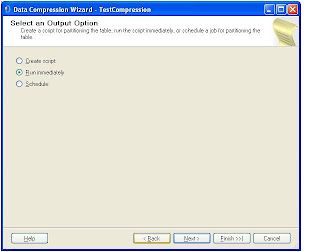
Enabling Data Compression from Management Studio
Screen 1


Screen 2


Screen 3


Screen 4


Screen 5


Screen 6


We have successfully enabled data compression on this table. How do we confirm this. You can query sys.partitions. Here we go….
Select OBJECT_NAME(object_id),data_compression_desc,* From sys.partitions where data_compression<>0.


Screen 7
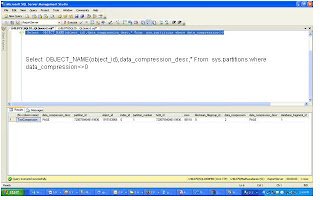


Now we have enabled compression and let us check what happens if we run the same system stored procedure to do the estimation. See the result. No scope for improvement further because it is already compressed


Few more informations from Books online.
• The compression setting of a table is not automatically applied to its nonclustered indexes.
• Each index must be set individually.
• Tables and indexes can be compressed when they are created by using the CREATE TABLE and CREATE INDEX statements. To change the compression state of a table, index, or partition, use the ALTER TABLE or ALTER INDEX statements.
• Compression is not available for system tables.
• Apply compression only after exploring options like Data defragmentation etc.

Summary
Having explained the whole topic I kept one very important point for the summary section. That is, this feature will be only available in Enterprise Edition, Developer Edition and Evaluation Edition. So the system stored procedures and options in GUI will only be available in the above mentioned editions. In IO bound application certainly this feature will be useful. I keep my finger crossed for the feedback from the community who have successfully implemented and experience this feature.

Thursday, July 10, 2008

SQL Server 2008 – Table Locking enhancement

In SQL Server 2008 ALTER TABLE statement, you can find a new option called SET LOCK_ESCALATION. This is one of the enhancement in Locking in SQL Server 2008. This option can have three value, Auto,Table, Disable

FROM BOL
SET ( LOCK_ESCALATION = { AUTO | TABLE | DISABLE } )
Specifies the allowed methods of lock escalation for a table.

AUTO
This option allows SQL Server Database Engine to select the lock escalation granularity that is appropriate for the table schema.
• If the table is partitioned, lock escalation will be allowed to the heap or B-tree (HoBT) granularity. After the lock is escalated to the HoBT level, the lock will not be escalated later to TABLE granularity.
• If the table is not partitioned, the lock escalation will be done to the TABLE granularity.

TABLE
Lock escalation will be done at table-level granularity regardless whether the table is partitioned or not partitioned. This behavior is the same as in SQL Server 2005. TABLE is the default value.

DISABLE
Prevents lock escalation in most cases. Table-level locks are not completely disallowed. For example, when you are scanning a table that has no clustered index under the serializable isolation level, Database Engine must take a table lock to protect data integrity.

Note : If you use partitions then After you create a partitioned table, consider setting the LOCK_ESCALATION option for the table to AUTO. This can improve concurrency by enabling locks to escalate to partition (HoBT) level instead of the table. For more information

SQL Server 2008 – PowerShell in SQL Server

SQL Server 2008 introduces support for Microsoft PowerShell. PowerShell is a new command-line shell and scripting language which offers more functionality than Windows command prompt utilities.


Read more about powershell here
http://www.microsoft.com/technet/scriptcenter/hubs/msh.mspx

I was planning to blog about this for long time but the problem is, PS is an ocean in itself. For sure, very powerful and very useful in day to day DBA activities. When I started exploring this utility I could figure out many scenarios where SQLPS can really help. Like , backup file management(or for that matter any file management) like moving/deleting old backup files. With my little knowledge and experience in SQL Server I am sure we can write many utility tools using SQLPS.

How to go to SQL Powershell (PS) prompt

(a) Start - - ->> Run -- ->> Cmd -- ->> sqlps
(b) I got a prompt like “PS C:\Documents and Settings\Madhu>
(c) Now I want to change the location to my SQL Server instance and databases

PS C:\Documents and Settings\Madhu>Set-Location SQL:\LHIL075\SQL2008FEB\Databases

OR

PS C:\Documents and Settings\Madhu>CD SQL:\LHIL075\SQL2008FEB\Databases

Note : CD is an aliases for Set-Location cmdlet.

(d) I get the following prompt
PS SQL:\LHIL075\SQL2008FEB\Databases>
(e) Now you can do Get-ChildItem or DIR to get the object in this node


There are many useful cmdlets available. In the coming months we should find many useful utilities using PS.

Using Invoke-Sqlcmd (one of the cmdlet available)
The Invoke-Sqlcmd cmdlet lets you run your sqlcmd script files in a PowerShell environment. Much of what you can do with sqlcmd can also be done using Invoke-Sqlcmd.
This is an example of calling Invoke-Sqlcmd to execute a simple query, similar to specifying sqlcmd with the -Q and -S options:

Summary
Simple... need to explore more. I will be updating with few sample scripts soon

Thursday, June 12, 2008

SQL Server 2008 – All Action Auditing (AAA)

In SQL Server 2005, this was one of the area were there was significant enhancement from SQL Server 2000. DDL Trigger and default trace was introduced in SQL Server 2005 to provide administrator more controlled Audit without effecting the system performance. Still , the SQL Server community was not convinced with the auditing features of SQL Server 2005. For instance, DDL trigger was not able to track all the DDL Trigger events like sp_Rename. Running profiler for auditing was just can not be done because Profiler was not able to trace the only required data. So what was the solution provided in earlier versions to have a proper audit system? Nothing but go for third party tools.

In SQL Server 2008, Audit is a first class object in the server. You have complete set of DDL statement to manage Audit feature. Audit can also make the audited information entries into file , windows application log or windows security log. Security log entry benefit is that, even the administrator can not change the entries. Another good thing about this feature is , you have very granular level control. Ie. You can audit very specific action on an object for example, who is running select query on EmployeeSalary table , salary column. This was not possible in profiler.

Note : As on today, the information is that this feature will only be available in Enterprise Edition of SQL Server 2008.

There are two categories of actions for audits:
• Server-level. These actions include server operations, such as management changes and logon and logoff operations.
• Database-level. These actions encompass data manipulation languages (DML) and data definition language (DDL) operations.

1. How to configure Audit using Management Studio

Create Audit


Important

• File path : Only the folder has to be specified. The File filename has to be unique so, the system will provide the name with timestamp.
• Folder : The folder must already be existing
• You can mention the max rollover files and size.


2. Create Server Audit Specification (or Database Audit Specification as per your requirement)


Audit Action Type : There are many action type. Select the appropriate one.


3. Ensure that the Audit and Audit Specification is enabled
Select is_state_enabled,name From sys.server_file_audits
Select is_state_enabled,Name From sys.server_audit_specifications
Select is_state_enabled,Name From sys.database_audit_specifications


The Audit file viewer report will looks like this.


4. Script to Create Audit Objects
GUI method is very simple and if somebody wants to do it by TSQL Script, its even simple. You can script the Audit objects the same way we do for any other objects. Just right click on the Audit and Server Audit specification which we have created and Script it. You can keep the script in Version control or so. Here is the script I have generated after configuring the audit process through GUI.

--Create Audit
/****** Object: Audit [Audit-20080612-194600] Script Date: 06/13/2008 09:43:25 ******/
CREATE SERVER AUDIT [Audit-20080612-194600]
TO FILE
( FILEPATH = N'D:\SQLAudit\'
,MAXSIZE = 100 MB
,MAX_ROLLOVER_FILES = 10
,RESERVE_DISK_SPACE = OFF
)
WITH
( QUEUE_DELAY = 1000
,ON_FAILURE = CONTINUE
,AUDIT_GUID = 'c314f405-ae9c-4f4b-947f-041070683c9d'
)
GO
--Create Server Specification
USE [master]
GO

CREATE SERVER AUDIT SPECIFICATION [ServerAuditSpecification-20080612-195650]
FOR SERVER AUDIT [Audit-20080612-194600]
ALTER SERVER AUDIT SPECIFICATION [ServerAuditSpecification-20080612-195650]
ADD (FAILED_LOGIN_GROUP),
ADD (SUCCESSFUL_LOGIN_GROUP)
GO

Important Datebase system objects Related to Auidt feature
fn_get_audit_file :Returns information from an audit file created by a server audit.
Eg.
Select Statement,* From fn_get_audit_file ('D:\SQLAudit\*',null,null)
--Will retrun all the file reports in the specified folder
sys.server_file_audits
sys.server_audit_specifications
sys.database_audit_specifications


Script to List all the Database Specification created from all the database
set nocount on
declare @My_Return int
declare @command varchar(1000)
set @command = 'use [?] Select *from sys.database_audit_specifications '
print @command
exec @My_Return = master.dbo.sp_MSforeachdb @command

Audit Trucnate Table Command
DDL Trigger in 2005 and 2008 still not able to track TRUNCATE Table Command. But Audit does that. SCHEMA_OBJECT_CHANGE_GROUP Database Specification will track your Truncate command too.

Summary
There are DDL statements to configure Audit like CREATE SERVER AUDIT AND CREATE SERVER AUDIT SPECIFICATION kind. But GUI method is pretty simple and straight forward. You also have these objects exposed through SMO. Because of the new events introduced to track the information, which is inside the engine unlike SQL Trace, the performance will be faster compare to SQL Trace. Any audit system will consume resource, but what All Action Audit (AAA) feature of SQL Server 2008 offers is, very granular level audit control with negligible performance hindrance.

Wednesday, June 11, 2008

Resource Governor in SQL Server 2008

Yet another fantastic feature or utility tool of SQL Server 2008 Resource Governor allows you to control the resource according to the requirements . This was motive behind this feature is providing predictable response to the user in any situation. In earlier versions, we had a single pool of resources like Memory, CPU, threads etc. You can not priorities the workload vs Resource pool in 2005 and earlier version. Generally, who accesses the system first and starts a process, it can consume the resources without any restrictions. Consider, some kind of BI runaway query is first hit system where the OLTP and OLAP Databases are in the same server. Now the OLTP process has to wait till the OLAP process releases the resource. This was a major concern in earlier versions. So what were the solution then, go for multiple instances and configure the Resource per instance or go for different machine altogether. Both method were having its own problem. By specifying the resource, if the system is not using that resource still will not released. If you go for another machine, you may have license issue and it’s not a cost effective method.

In SQL Server 2008, these problems are addressed by providing a tool called Resource Governor. You can differentiate the workload by Application Name, Login, Group, by database name etc. Once you have defined the workload, you can configure the resource which can consumed by workload. Probably, you want to give more resource for your OLTP application than the OLAP. You have that kind of flexibility and control here.
The following three concepts are fundamental to understanding and using Resource Governor:
• Resource pools. Two resource pools (internal and default) are created when SQL Server 2008 is installed. Resource Governor also supports user-defined resource pools.
• Workload groups. Two workload groups (internal and default) are created and mapped to their corresponding resource pools when SQL Server 2008 is installed. Resource Governor also supports user-defined workload groups.
• Classification. There are internal rules that classify incoming requests and route them to a workload group. Resource Governor also supports a classifier user-defined function for implementing classification rules.

I am exploring this tool in detail. I will be updating this blog entry soon with my hands-on with this wonderful tool